Wednesday, 8 June 2016

Playing with Annonymous inner class


Annonymous inner class

Thread T= new Thread()
{};
//annonumous inner class extends Thread class, in short it's  extedns parent Thread

Runnable R= new Runnable()
{
};
is it possible , yes
it's not runnable object it's an object of annonumous class which implement Runnable
else you can't crate an object of Interface

Example

public class AnnnerClass {

public static void main(String[] args) {

A a=new A()
{

public void m1()
{

System.out.println("spicy");
}
};

a.m1();

}
}


public class A {

public void m1()
{
System.out.println("swetty");
}
}
here annonymous A extends A,  and call child class object. 

Monday, 18 April 2016

What is Splunk and How Does it Work?


The general idea is that Splunk can take any data, any log, from anywhere in your infrastructure and add it to a searchable, intelligent index through which you can extract all sorts of meaningful data about what's happening. By default, the system will watch all the logged events and return slices of interesting data. For instance, from the dashboard you can see that a specific server name or event type is occurring at a higher than normal frequency. From there, you can drill down and chase the cause of the error from the hypervisor to the storage, networking, and even the VM.

more you can get in below link
https://helgeklein.com/blog/2014/09/splunk-work/


there are some video lecture also available in it. you can  check online

https://www.coursera.org/learn/bigdata-analytics/lecture/rFnSu/how-splunk-works-hands-on-tutorial

If there's gold in log files, Splunk, Inc's Splunk Enterprise will help you to find it. Splunk bridges the gap between simple log management and security information and event management (SIEM) products from vendors such as ArcSight, RSA, Q1 Labs, and Symantec.

http://www.networkworld.com/article/2181089/security-vulnerability-mgmt/splunk-explains-it-all.html

Ref:-

http://www.networkworld.com/article/2181089/security-vulnerability-mgmt/splunk-explains-it-all.html

https://www.coursera.org/learn/bigdata-analytics/lecture/rFnSu/how-splunk-works-hands-on-tutorial

Sunday, 27 March 2016

IBM MQ and how it works,

IBM MQ is a family of network software products that IBM launched in March 1992. It was originally called MQSeries, and was renamed WebSphere MQ in 2002 to join the suite of WebSphere products. In April 2014, it was renamed IBM MQ.

https://en.wikipedia.org/wiki/IBM_WebSphere_MQ


Simple Point-to-point application using WebSphere MQ JMS:-


http://www.ibm.com/developerworks/websphere/tutorials/i-mqrad3/i-mqrad3.html

Example of  mq call using java.

http://www.ibm.com/support/knowledgecenter/SSFKSJ/com.ibm.mq.helphome.doc/product_welcome_wmq.htm

Tuesday, 24 November 2015

Github

  1. https://github.com/about 

To understand GitHub, you must first have an understanding of Git. Git is an open-source version control system that was started by Linus Trovalds – the same person who created Linux. Git is similar to other version control systems – Subversion, CVS, and Mercurial to name a few.

  1. What is the difference between Git and GitHub? 
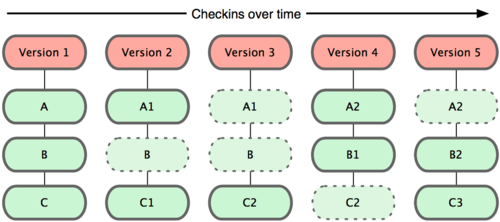
    Git is a version control system; think of it as a series of snapshots (commits) of your code. You see a path of these snapshots, in which order they where created. You can make branches to experiment and come back to snapshots you took.
    GitHub, is a web-page on which you can publish your Git repositories and collaborate with other people.
  2. Is Git saving every repository locally (in the user's machine) and in GitHub?
    No, it's only local. You can decide to push (publish) some branches on GitHub.
  3. Can you use Git without GitHub? If yes, what would be the benefit for using GitHub?
    Yes, Git runs local if you don't use GitHub. An alternative to using GitHub could be running Git on files hosted on Dropbox, but GitHub is a more streamlined service as it was made especially for Git.
  4. How does Git compare to a backup system such as Time Machine?
    It's a different thing, Git lets you track changes and your development process. If you use Git with GitHub, it becomes effectively a backup. However usually you would not push all the time to GitHub, at which point you do not have a full backup if things go wrong. I use git in a folder that is synchronized with Dropbox.
  5. Is this a manual process, in other words if you don't commit you won't have a new version of the changes made?
    Yes, committing and pushing are both manual.
  6. If are not collaborating and you are already using a backup system why would you use Git?
    • If you encounter an error between commits you can use the command git diff to see the differences between the current code and the last working commit, helping you to locate your error.
    • You can also just go back to the last working commit.
    • If you want to try a change, but are not sure that it will work. You create a branch to test you code change. If it works fine, you merge it to the main branch. If it does not you just throw the branch away and go back to the main branch.
    • You did some debugging. Before you commit you always look at the changes from the last commit. You see your debug print statement that you forgot to delete.
    • Reference:-


Monday, 2 November 2015

Best of Eclipse

How to do static import in Eclipse - Java

Do you know what is shortcut of doing static import in Eclipse? Well I didn't know before, but today I come to know that shortcut Ctrl+Shift+M (Source > Add Import) can not only be used to add missing...

Jar Artifiact Dependency Search Not Working in Eclipse - Solved

Recently I face an strange issue while using Maven in Eclipse via M2Eclipse plugin. I have created a Maven Java project in Eclipse and subsequently tried to add Spring framework as dependency, to my...

How to See difference between two Files in Eclipse - Text Comparision

One of the common task for every programmer is is to compare two files and find out difference between them. You would do this while comparing same file from different release version or from different...

Eclipse Not Able To Connect Internet, Market Place - Configure Connection Proxy Settings

If you are using Eclipse in your company, you might have faced issues, where Eclipse is not able to connect to internet. Since most of companies uses proxy for connecting to Internet, its important to...

Eclipse No Java Virtual Machine was found Windows JRE JDK 64 32 bit Error

One of my reader was installing Eclipse in his Windows 7 x86 machine and emailed me about this error "A java Runtime Environment (JRE) or Java Development kit (JDK) must be available in order to run...

What is java.library.path , How to set in Eclipse IDE

java.library.path is a System property, which is used by Java programming language, mostly JVM, to search native libraries, required by project. Similar to PATH and Classpath environment variable, java.library.path...

How to Increase Console Buffer Size in Eclipse IDE - Output and Debug Console

By default Eclipse IDE has limit on console output, also known as console buffer size. Which means, your Eclipse console will overfill quickly, if you are running a Java server program, which usually...

How to Fix Must Override a Superclass Method Error Eclipse IDE Java | @Override annotation With interface methods

One of annoying error while overriding Java method in Eclipse IDE is must override a superclass method error , This error is quite frequent when importing Java  projects and still I haven't seen...

How to fix Failed to load Main-Class manifest attribute from jar - Java Eclipse Netbeans Tutorial

If you have tried creating JAR file and running Java program form command line you may have encountered "Failed to load Main-Class manifest attribute from jar" , This error which haunts many Java programmer...

How to decompile class file in Java and Eclipse - Javap command example

Ability to decompile a Java class file is quite helpful for any Java developer who wants to look into the source of any open source or propriety library used in project. Though I always prefer to attach...

How to attach source in eclipse for Jars, debugging and code look-up – JDK Example

Attaching source of any Jar in Eclipse e.g. JDK or open source libraries like Spring framework is good idea because it help during debugging and code development. As a Java programmer at least you should...

How to escape String literal in Java using Eclipse IDE

Whenever you paste String in Eclipse which contains escape characters,  to store in a String variable or just as String literal it will ask to manually escape special characters like single quotes,...

How to comment uncomment single line and block of code in Java - Eclipse Tips Tricks

Knowing Eclipse shortcut to comment and uncomment single line or block of code can save you lot of time while working in Eclipse. In fact I highly recommend every Java programmer to go through these...

Eclipse shortcut to System.out.println in Java program - Tips

Eclipse IDE provides quick shortcut keys to print System.out.println statement in Java but unfortunately not every Java programmers are familiar of that.  Even programmers with 3 to 4 year of experience...

Eclipse shortcut to remove all unused imports in Java file

How to remove all unused imports in Eclipse Eclipse IDE gives warning "The import XXX is never used" whenever it detect unused import in Java source file and shows a yellow underline. Though unused...

Finally Eclipse supports JDK7 in Eclipse Indigo 3.7.1

Much awaited release of Eclipse with JDK7 is now over, Eclipse has announce release of version Indigo 3.7.1 which will support JDK7.though I already have downloaded Netbeans with JDK7 support I was...

10 Tips to Debug Java Program in Eclipse

How to debug java program in Eclipse Debugging is a must have skill for any java developer. Having ability to debug java program enables to find you any subtle bug which is not visible during code...

How to setup Java remote debugging in Eclipse

How to remote debug Java program in Eclipse Remote debugging is not a new concept and many of you are aware of this just for who don’t know what is remote debugging? It’s a way of debugging any process...

Top 30 Eclipse Keyboard Shortcuts for Java Programmer

This tutorial is about 30 Eclipse keyboard shortcuts, this list is by no means complete and I will suggest you guys to share eclipse shortcuts listed other than here to make this more useful. Eclipse...


Read more: http://javarevisited.blogspot.com/search/label/Eclipse#ixzz3qMJukWfa

Tuesday, 29 September 2015

Top 30 Eclipse Keyboard Shortcuts for Java Programme

This tutorial is about 30 Eclipse keyboard shortcuts, this list is by no means complete and I will suggest you guys to share eclipse shortcuts listed other than here to make this more useful.Eclipse is most used Java development IDE and knowing Eclipse shortcuts not only improve your productivity but also makes you more efficient, you will have more time for things you like to do. Using keyboard shortcuts also helps to impress colleagues and shows that you have good hold on tools you used for Java Development.


I was big fan of Netbeans IDE before coming across Eclipse because I was from J2ME background and Netbeans provide sophisticated IDE environment to enable you to build, debug and run your Java application in various emulator including some advanced processing options e.g. preprocessing, setting up Exception break-point etc. From that time I love to know keyboard shortcuts on IDE and other tools I used for development including Edit Plus, Microsoft Excel etc.

But when I join an investment bank I came across Eclipse IDE, since everybody in my team is using and Netbeans IDE was not available in company (don’t know why that was not allowed net-beans even though it was free) I have decided to go Eclipse way, later I found that Eclipse was most suited for those application given some of cool feature of eclipse e.g. Remote Debugging, Conditional Breakpoints, Exception breakpoints and Ctrl+T and Ctrl+R kind of shortcuts.

Here I am sharing list of 30 Eclipse keyboard shortcuts which I found most useful and using in my day to day life while writing code, reading code or debugging Java application in Eclipse.

Eclipse Keyboard Shortcuts


1)      Ctrl + T for finding class even from jar

This keyboard shortcut in Eclipse is my most used and favorite shortcut. While working with high speed trading system which has complex code I often need to find classes with just blink of eye and this eclipse keyboard shortcut is just made for that. No matter whether you have class in your application or inside any JAR, this shortcut will find it.

2)      Ctrl + R for finding any resource (file) including config xml files

This is similar to above Eclipse shortcut with only difference that it can find out not only Java files but any files including xml, configs and many others, but this eclipse shortcut only finds files from your workspace and doesn’t dig at jar level.

3)      Ctrl + 1 for quick fix
This is another beautiful Eclipse shortcut which can fix up any error for you in Eclipse. Whether it’s missing declaration, missing semi colon or any import related error this eclipse shortcut will help you to quickly short that out.

4)      Ctrl + Shift + o for organize imports

Another Eclipse keyboard shortcut for fixing missing imports. Particularly helpful if you copy some code from other file and what to import all dependencies.

Eclipse Shortcut for Quick Navigation

In this section we will see some eclipse keyboard shortcut which helps to quickly navigate within file and between file while reading and writing code in Eclipse.

7) Ctrl + o for quick outline going quickly to method
9) Alt + right and Alt + left for going back and forth while editing.
12) Alt + Shift + W for show in package explorer
13) Ctrl + Shift + Up and down for navigating from member to member (variables and methods)
15) Ctrl + k and Ctrl + Shift +K for find next/previous
24) Go to a type declaration: F3, This Eclipse shortcut is very useful to see function definition very quickly.

Eclipse Shortcut for Editing Code

These Eclipse shortcuts are very helpful for editing code in Eclipse.
5) Ctrl + / for commenting, un commenting lines and blocks
6) Ctrl + Shift + / for commenting, un commenting lines with block comment
8) Selecting class and pressing F4 to see its Type hierarchy
10) Ctrl + F4 or Ctrl + w for closing current file
11) Ctrl+Shirt+W for closing all files.
14) Ctrl + l go to line
16) Select text and press Ctrl + Shift + F for formatting.
17) Ctrl + F for find, find/replace
18) Ctrl + D to delete a line
19) Ctrl + Q for going to last edited place


Miscellaneous Eclipse Shortcuts

These are different Eclipse keyboard shortcuts which doesn’t fit on any category but quite helpful and make life very easy while working in Eclipse.

20) Ctrl + T for toggling between super type and subtype
21) Go to other open editors: Ctrl + E.
22) Move to one problem (i.e.: error, warning) to the next (or previous) in a file: Ctrl +. For next, and Ctrl +, for previous problem
23) Hop back and forth through the files you have visited: Alt +  and Alt + , respectively.
25) CTRL+Shift+G, which searches the workspace for references to the selected method or variable
26) Ctrl+Shift+L to view listing for all Eclipse keyboard shortcuts.
27) Alt + Shift + j to add javadoc at any place in java source file.
28) CTRL+SHIFT+P to find closing brace. Place the cursor at opening brace and use this.
29) Alt+Shift+X, Q to run Ant build file using keyboard shortcuts in Eclipse.
30) Ctrl + Shift +F for Autoformating.

Please post if you guys have some more useful Eclipse keyboard shortcuts as comments, I will include them in this list. These Eclipse shortcuts will mostly work almost all Eclipse versions e.g. 3.5, 3.6 Helios, Eclipse Ganymede and Indigo. Let me know if you face any issue while using these Eclipse shortcuts in any particular version of Eclipse IDE.


Read more: http://javarevisited.blogspot.com/2010/10/eclipse-tutorial-most-useful-eclipse.html#ixzz3nBtVvRRm

Monday, 21 September 2015

OCAJP 7 or OCAJP 8? Which Java Certification should I take?

Java certification is great way to learn and master The Java programming language, do well on interview and get recognition in job, but most common reason of doing Java certification is to find a job. After Oracle's acquisition and dividing old SCJP exam into two exams OCAJP and OCPJP, it has become really confusing for many developers to decide which Java certification exam they should take. Since technologies change fast and Java is no exception, its just an year when Java 8 was released and now people are talking about Java 9. In general, it is better to go with the latest version of a certification, which is currently available i.e. the Java 8 version. But in case of Java certifications, it's not that simple. Many of my reader email me about my advice to decide between Java SE 6, 7 and 8 exams before zeroing one. After answering their emails, I realize its better to jolt down important points for everyone's benefit. Here are things you should consider before buying Java certification voucher and starting your preparation.


Important points about Java Certifications

The most important thing to know is that from Java 7 onward, Oracle has split the Java Professional certification into two exams - Java Associate level and Professional level. To be a Java 7 or Java 8 certified professional, you need to first pass OCAJP before taking OCPJP, but if you hold any Java certification, you can also take an upgrade exam for Java SE 7 or 8.

If you want to become Java certified developer by giving just one exam, then your only option is to take 1Z0-851 or OCPJP6. It is actually similar to older one SCJP6 and does not require any prior certification.

To acquire the latest Java 8 Professional Certification (OCPJP8), you need to first pass the Java 8 Associate Certification (OCAJP8). In other words you have to take two exams - 1Z0-808 and 1Z0-809. OCAJP 8 is now out of beta and available as normal exam, but OCJPJP 8 (1Z0-809) is not yet released. So even if you pass associate level Java 8 exam now, you need to wait until 1Z0-809 is released. I highly recommend this exam to new developers who are trying to get Java certification, because Java 8 has introduced several new features in language and will provide competitive advantage to you on Interviews. It's also better to learn the future way of using Java sooner than later.

Which Java certification exam to take.


Things are little better for already certified Java developers. Oracle provides upgrade exams for them so that you can update your knowledge and certification to newer version of Java. Since Java 8 is a major release and in coming days will be sought after skill, its better for Java guys to take an appropriate upgrade exam such as 1Z0-810 for Java 8 Professional. For those, who wants to upgrade to Java 7 certification, they can take 1Z0-805 exam.


If you are giving Java certification to get a Job or improve your chances over other candidates then its important to have a certification under your belt, even if its not the latest one. Many developers make mistake of going after OCPJP6 in order to get certify in one attempt but its a difficult exam to crack, especially compared to  OCAJP7. It's one of the toughest Java certification out there and many experienced developer was not able to clear it one shot. I don't recommend this to freshers and junior Java developers who are looking for job. Beginners and freshers are better off with preparing OCAJP7 because then the will at-least  have one Java certification, which might help them to land a job. Never underestimate power of Java certification, there are many Java job position where consultants are only looking for Oracle certified Java developer.

That's all about which Java certification exam should you take. In short, if you are beginner looking for job then take OCAJP7, if you are a working Java developer then take OCAJP8 and if you are already certified Java developer looking to upgrade to Java 8 then take 1Z0-810. This is also a good time to get Java certified because Oracle is offering 20% discount on all Java exams.


Recommend resources to prepare for Java certification :

  • OCA and OCP Java SE 7 Programmer I & II Study Guide (Exams 1Z0-803 & 1Z0-804) [see here]
  • Oracle Certified Professional Java SE 7 Programmer Exams 1Z0-804 and 1Z0-805: A Comprehensive OCPJP 7 Certification Guide By S G Ganesh and Tushar Sharma [see here]
  • OCA: Oracle Certified Associate Java SE 8 Programmer I Study Guide: Exam 1Z0-808 1st Edition by Jeanne Boyarsky (Author), Scott Selikoff (Author) [see here]


Read more: http://java67.blogspot.com/2015/07/ocajp-7-or-ocajp-8-which-java-certification-should-I-take.html#ixzz3mQPzuxis